FAQs
Student and Guardian
1. What can I do with Edlas?
You can find schools and teacher profiles, read details, start chats with teachers who offer tuition, and report issues if needed.
2. What details are required to sign up as a guardian?
Full name, email, mobile number, and gender.
3. What details are required to sign up as a student?
Full name, gender, age, school name, class, and mobile number. Parental supervision is recommended while creating and operating a profile.
4. Can I view school and teacher profiles without an account?
No. You need to create an account to browse the contents of the app.
5. How do I look out for schools on Edlas?
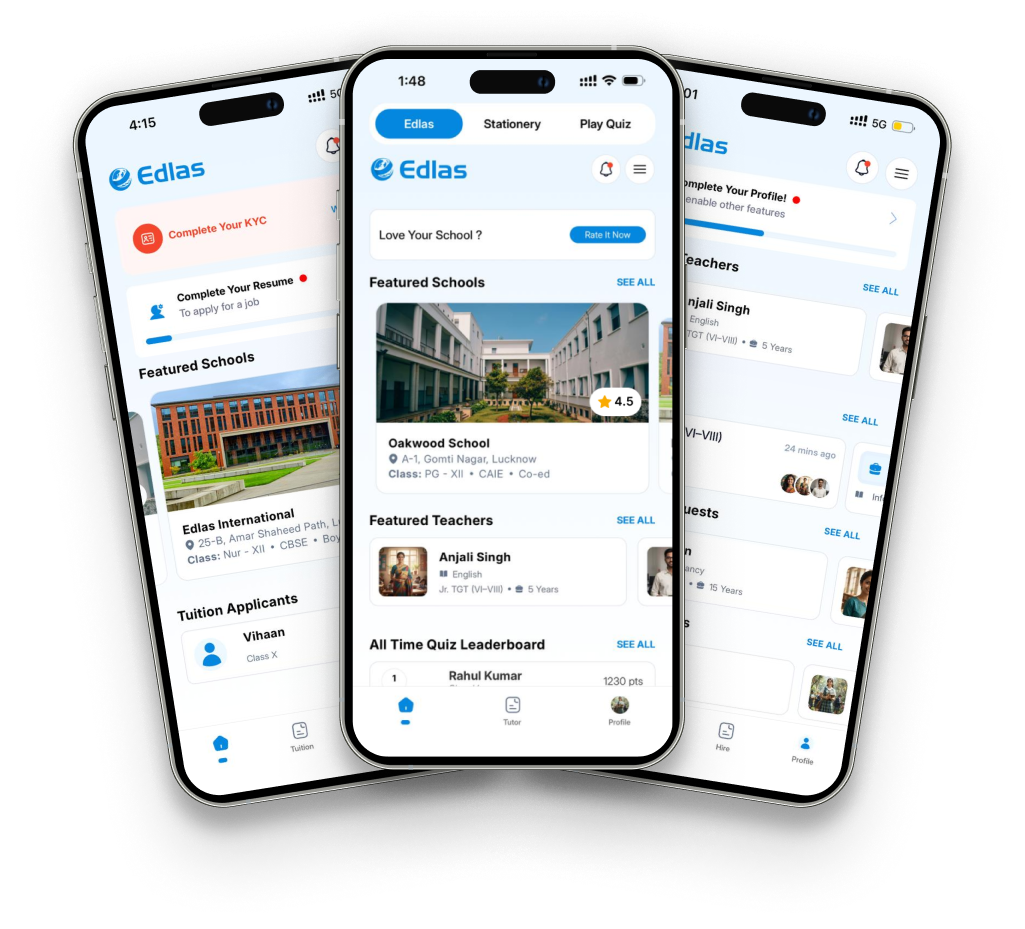
On the Edlas homepage find Featured Schools > See All. List of all the schools of the city that are available on Edlas can be found here.
6. I want to find the details of a specific school. How do I do that?
Click on Featured Schools > See All. A search bar is now available on top of the screen > Type the name of the school, if it is available on Edlas, it will appear in the search results. Click on it to view the details. Quick Tip: Try searching for "Best schools in Lucknow", "Top CBSE schools", etc.
7. How can Edlas help me find the best schools according to my needs?
Go to the Featured Schools > See All screen > On the bottom of the screen, click on the Filter button. Various filters are now available to refine the results as per the needs of the student/guardian. Results can be filtered for Class (eg. Playgroup, Class V, etc), Board (eg., CBSE, CISCE[ISC/ICSE] State Board, etc), Format (Co-ed, boys' or girls'), or a combination of any/all of these.
8. What is the use of the Blue Pin icon against the Address field on school's profile?
The icon placed against the school address is to help you quickly find the directions to the school from your location. It redirects you to your device's default maps app.
9. What is "Interested in admission?" under school profile?
If you are looking for admission in any particular school, just go its profile and click Yes under "Interested in admission?" section. The school will then be able to directly send notifications to you (within the app), when it is accepting new admissions.
10. What does the blue coloured icon against some school names mean?
A blue ring with a check- mark is visible against some school names. It signifies that the ownership of such a school has been verified by Edlas and the profile is thus maintained and operated by the school authority.
11. A banner like image with/without text sometimes appears on my homepage just below the Featured Schools. What is that?
It is the announcement area. That screen property is reserved for use by Edlas to display informational or promotional content.
12. What is this Featured Schools module? How do schools feature on this list?
This carousel is placed to increase the visibility of the schools of the city. This list refreshes every day. The contents of the Featured Schools may be decided manually or through a proprietary mechanism designed by Edlas.
13. What is Featured Teachers? Who decides this list?
This module is designed to increase the visibility of the teachers. The list is curated by a sophisticated proprietary algorithm designed by Edlas which evaluates various parameters of a teacher’s profile, including but not limited to, resume, profile quality and user activity. This list refreshes every few hours depending upon platform activity.
14. Why does Edlas need my location?
Edlas does not require your location permission by default for basic app functions. Location permission is needed only when Nearby toggle is turned on, in order to show the schools or tutors that are closer to the user.
15. What is Nearby toggle? How do I use it?
A Nearby toggle button is available on the Featured Schools > See All screen as well as on Tutor screen under the Filters. It helps sort schools and tutors in the order of proximity from the user.
16. How do I contact a tutor?
Click on any of the tuition services listed under Tutor tab click Apply then tap Call or Chat.
17. I am not able to call a certain tutor? What could be the reason?
Tutors are not bound to provide their contact numbers. If a tutor has provided their phone/mobile number, you can certainly reach out to them after clicking "Apply".
18. How do I find the right tutor?
On the Tutor screen, details of all the tutors who are currently offering tuition services are available. User can filter the results as per their needs. Filters are available for Class (eg., Playgroup, Class V, etc), Subjects (eg. English, Economics, Mathematics, etc) and Mode of tuition (Home, Online or Batches). User can also sort the results in the order of proximity by using the Nearby toggle.
19. Why is there a "All Subjects" option in the Subjects filter on Tutor screen?
User can select a single subject to look for tutors who have core competency in that particular subject, or they can select "All Subjects" to look out for tutors who provide flexible and wide range of offerings with respect to subjects.
20. What is Past Inquiries screen?
Details of all the tuition services that have been applied to by a user are available under the Past Enquiries. User can visit this tab to see the details of tuition listings and their chat history with the tutors.
21. Who can start a chat?
Students and Guardians can message Teachers who have their tuition services listed. Chat is not available with schools.
22. Why can’t I chat with some teachers?
Chat is available only for teachers who list their tuition services.
23. Can tutors message first?
Yes, once a user clicks on Apply button of a tutor, tutor can initiate a chat.
24. How do I report inappropriate behaviour in chat?
In the chat window, tap the Three Dot Icon on top right > select Report > choose an appropriate reason and provide a brief description. You can also upload screenshot > Submit.
25. What is the use of Block feature in chat?
If you want to temporarily stop communication with the other user, you can use the block option. You can unblock the user later on and continue the conversation.
26. What is End Conversation option available under the chat?
If you use this feature, the other person will not be able to contact you ever again.
27. How can I change my profile picture?
Click on the Three Line Icon on top right of the homepage > select Account Settings > click on Edit Details > click on Upload Image option to change your DP. You can also quickly do this by visiting your Profile screen > click on your Profile Picture > click the Pen and Paper icon on top left.
28. Are there no delivery charges?
Delivery charges depend upon cart value. For latest pricing, check your cart details before placing an order.
29. I want to cancel my order but there is no such option. Why?
An order can be cancelled before it is out for delivery. Once the order is shipped, cancellation is not allowed.
30. What if I receive a defective/wrong/broken product?
All Edlas orders are shipped under open box delivery. User is required to check the items thoroughly at the time of delivery and if any discrepancy is found, they should not accept the order. For more details refer to T&C.
31. How will refund be processed in case of cancellation of prepaid order?
Refunds will be processed as per industry standards times. In case of any issues, contact Edlas support via mail or directly raise a ticket from within the order details page.
32. How do I rate a school?
You can rate your school on various parameters. Once you provide your current school's name either during Signup, or from the Profile screen, a "Love Your School? Rate it Now" card will appear on the top of your Homepage. Click the card and follow the instructions. Please provide your ratings responsibly. It can help others make informed decisions. Also, when your ratings are successful, you earn some Edlas coins. For latest benefits, please refer to the relevant app section.
33. What are Edlas Coins?
Edlas coins are small rewards that a user gets when they engage with various activities on the platform like rating their school successfully, playing quizzes, making it to the monthly leaderboard, etc.
34. How can I utilize my earned Edlas Coins?
Coins can be utilized to get extra discounts apart from any discounts that are already offered on the product pages or discount coupons available on order preview page. Users can redeem these coins when they purchase stationery products from the Stationery section of the app.
35. What are the two quiz types?
There are two modes in quiz section - Solo and PvP. In solo, player gets questions and has to answer correctly within the stipulated time to win. In PvP mode, the app tries to match you against the other players of your class.
36. How are quiz leaderboards decided?
Leaderboards are calculated automatically based on the performance of all the players. There are separate leaderboards for two game types: Solo and PvP; and separate leaderboards for different timeframes: All Time, Monthly and Weekly. All Time leaderboards get updated continuously, Weekly leaderboards get cleared at the end of every week while Monthly leaderboards are finalized 2-3 days before the end of month. All the players who appear on the monthly leaderboard become eligible for reward coins. For latest benefits, visit the Coins tab under Play Quiz section.
37. What are the rules of PvP mode?
- Only one player can answer question. Whoever answers first gets their answer registered. The quiz then automatically moves to the next question.
- The user who answered first gets the reward or penalty for the answer, the opponent gets nothing.
- Whoever registers more correct answers wins the game.
- Players can not leave the quiz screen in PvP mode. Be attentive. If you leave, you lose.
38. What information of mine is publicly visible?
No information of yours is shared with anyone by default. However, when you interact with the users and with the contents of the app, some of your non-sensitive information will be visible to them. For example, when you show interest in a tutor's service, they will be able to see your DP, profile name and your class.
Teacher
1. What can I do with Edlas?
You can find schools and jobs, post your tuition services, connect with tuition applicants, and report issues if needed.
2. What details are required to sign up as a teacher?
Full name, email, mobile number, gender and DoB. After successful signup you'll be asked for your teaching category, subjects and teaching experience.
3. Can I view school profiles and list my tuition services without an account?
No. You need to create an account to browse the contents of the app.
4. How do I look out for schools on Edlas?
On the Edlas homepage find Featured Schools > See All. List of all the schools of the city that are available on Edlas can be found here.
5. I want to find the details of a specific school. How do I do that?
Click on Featured Schools > See All. A search bar is now available on top of the screen > Type the name of the school, if it is available on Edlas, it will appear in the search results. Click on it to view the details. Quick Tip: Try searching for "Best schools in Lucknow", "Top CBSE schools", etc.
6. What is the use of the Blue Pin icon against the Address field on school's profile?
The icon placed against the school address is to help you quickly find the directions to the school from your location. It redirects you to your device's default maps app.
7. What does the blue coloured icon against some school names mean?
A blue ring with a check- mark is visible against some school names. It signifies that the ownership of such a school has been verified by Edlas and the profile is thus maintained and operated by the school authority.
8. A banner like image with/without text sometimes appears on my homepage just below the Featured Schools. What is that?
It is the announcement area. That screen property is reserved for use by Edlas to display informational or promotional content.
9. What is this Featured Schools module on the home screen? How do schools feature on this list?
This carousel is placed to increase the visibility of the schools. This list refreshes every day. The contents of the Featured Schools may be decided manually or through a proprietary mechanism designed by Edlas.
10. How do I list my tuition service on Edlas?
Go to homepage > click on Tuition tab on the footer > on top right find the + Tuition Service > click on it and fill all the details > click on Submit. Now click on the Open For Tuition toggle to make your service go live.
11. Why do I need to create a resume before posting my tuition service?
Creating a quick, minimal resume with pre-defined fields is advised right after creating your profile. It helps your profile stay ready to make the most out of the platform, whether it is about posting your tuition services or applying to jobs.
12. What is the use of KYC? Is KYC mandatory?
A minimal KYC is done in order to keep the platform safe for everyone. KYC is not necessary. It is required only if you want to post your tuition services on Edlas.
13. My KYC request has been rejected. What to do next?
If for some reason, your KYC gets rejected, you'll be informed about it via an in-app notification. Please check your notifications to know the reason for rejection. Also, you'll see a "KYC Rejected - Try Again" card on the top of your home screen. Use it to start the process again.
14. I am not able to change my Name. Why?
Once your KYC is successful, you will not be able to change some of your details. As such, make sure all the details provided by you are authentic.
15. Why am I not able to create my tuition ticket?
Make sure that you have created your Resume and KYC has been successful.
16. I want to create tuition service for only a single class. How do I do it?
To create a tuition for just one class, select that particular class in From as well as To dropdowns on the + Tuition Service screen.
17. What if I do not provide my mobile number in + Tuition Service?
Mobile number is optional. If mobile number is not provided by the tutor, interested students can still contact a tutor on Edlas using the built-in Chat feature. Note that if phone number is provided, it is visible and accessible to all the students. If you prefer privacy, you may avoid mentioning your contact number.
18. What is Tuition Applicants section on my homepage?
All the interested users who "apply" to your tuition service instantly appear here.
19. Who can start a chat?
Students and Guardians can message Teachers who have their tuition services listed. Chat is not available with schools.
20. Can tutors message first?
Yes, once a user clicks on Apply button of a tutor, tutor can initiate a chat.
21. How do I report inappropriate behaviour in chat?
In the chat window, tap the Three Dot Icon on top right > select Report > choose an appropriate reason and provide a brief description. You can also upload screenshot > Submit.
22. What is the use of Block feature in chat?
If you want to temporarily stop communication with the other user, you can use the block option. You can unblock the user later on and continue the conversation.
23. What is End Conversation option available under the chat?
If you use this feature, the other person will not be able to contact you ever again.
24. How do I find teaching jobs on Edlas?
Open the app > on the footer, find Jobs and click on it. All the jobs relevant to your profile are available on the Vacancies tab under Jobs. Click on any of the listed jobs to view its details and scroll down to click Apply.
25. I found a job vacancy that has various fields like Core Requirements and Monthly Salary marked as Not Available. Why is that?
Not all the details mentioned in the job ticket are mandatory. If it is mentioned as Not Available, the school may have left the field blank while creating the job ticket. In such a case, ignore all such fields to concentrate only the fields that are described and apply accordingly.
26. How do I know if I get shortlisted for a job by a school?
When a school shortlists applicants, notifications are sent to intimate them of the same. Also, a candidate can check their Shortlisted tab on the Jobs screen to see if they have been shortlisted.
27. What information of mine is publicly visible?
When you create a profile, certain non-sensitive information about you is visible to users including your teaching category, subject(s) taught by you, teaching experience, your current school and your brief introduction that you provide in the About section of your profile. When you list your tuition service, your qualification - whether you're intermediate or pursuing graduation, and if you're a graduate and/or post-graduate then the specific degrees too.
School
1. What can I do with Edlas?
You can view teachers' profiles, post job vacancies, manage your public profile, send admission notifications and more.
2. What details are required to sign up as a School?
On the school signup page under School Name search to find your school. If your school is already listed on Edlas, click the name and then proceed with providing the remaining details including email address, mobile number, and a school document to verify the identity of the school and authenticate the applicant. If your school is not already listed, just click on "Not in the list? Click here" and provide all the remaining details as mentioned already.
3. Can I view teacher profiles and post job vacancies without an account?
No. You need to create an account to browse the contents of the app.
4. What is Verification Requests section on the homepage?
When a teacher claims to be a faculty member of a school, a verification request is immediately sent to that school. The school may then review that profile and approve or reject the request accordingly. All the teachers that are verified in such a way have a "Verified" tag against the Current School name on their Teacher Details page.
5. What is Interested Students section on my homepage?
All the students and guardians who visit a school's profile and show interest in admission get listed on under the Interested Students section of that school. The school can then notify them all when the admissions start.
6. A banner like image with/without text sometimes appears on my homepage just below the Featured Teachers. What is that?
It is the announcement area. That screen property is reserved for use by Edlas to display informational or promotional content.
7. What is Featured Teachers? Who decides this list?
This module is designed to increase the visibility of the teachers. The list is curated by a sophisticated proprietary algorithm designed by Edlas which evaluates various parameters of a teacher’s profile, including but not limited to, resume, profile quality, user activity, etc. The list refreshes every few hours depending upon platform activity.
8. How do I notify students about ongoing admissions?
There are two ways to do this:
- Go to Manage > Admission Open > click the toggles for all the relevant classes that have vacant seats open for admissions.
- Go to Home > Interested Students > See All > Notify > a form will appear on the screen. You can now fill the details like a message title, body, a contact number and select to send it to all interested students or filter the notification to be sent to some selected students only.
9. How do I add fee details?
Go to Manage > Fee Structure > select a class > select fee type (transportation fee, tuition fee, etc), frequency (monthly, yearly, one time) and fil the amount. If you want to add another header, click on + Add Other Fees Type, fill the details and click Submit.
10. I want to add fee details but there is no option to do so in Fee Structure under Manage section.
Go to your Profile section and check that you have correctly filled the Classes Offered. Once you do that, the classes will be available in the Fee Structure and you can add fee details for those classes.
11. I want to upload some pictures to gallery but I am not able to, the upload button is faded.
Before you upload media, you have to go to the Facilities Management on the Manage page and toggle on relevant facilities of which you want to upload the pictures. Once that is done, those headers will be available in the Gallery and you can upload relevant images under each header.
12. How do I quickly create a job vacancy?
Open the app > on the bottom tab click on Hire > then click on + Create New Vacancy. Only four fields are mandatory - teaching category, subject, experience and a brief job description.
13. Why is the subject field set to All Subjects on Create New Vacancy page and why can't I change it?
If the teaching category is set to PPT (PG-UKG) or PRT (I-V), the subject field gets set to All Subjects automatically because teachers of these categories are expected to be able to teach all the subjects relevant to these class sections. If you have any specific requirements, please mention such details in the job description.
14. How are my school ratings decided?
Students and guardians registered on the Edlas platform have the option to rate your school. Edlas tries to keep the ratings authentic by allowing only users that have a connection to a institution to be able to rate it.
15. Why am I not able to change the school name and mobile number?
Once your account details are verified, you are not allowed to change the name of your institution and the phone number with which the account has been created. In case of any issues, please contact support to get help.
16. What information provided by me is publicly visible?
A school profile is a public profile and as such most of the information provided by it is visible to other platform users. For example, all the information provided on the Profile and Manage pages is freely visible to the visitors. However, the information needed to signup including your mobile number, email id and school verification documents are never shared with other platform users.
Download our mobile app
Revolutionising education through seamless connectivity.




© 2026 Edlas Pvt Ltd. All rights reserved. Building the future of education.


